Call transfer
Easily transfer calls to the right person or team. Connect customers faster, boost agent productivity, and speed up call resolutions with RingCentral Contact Center.

Whether you’re a business phone veteran who thinks transferring calls is self-explanatory or brand new to the concept (especially in the context of business VoIP), you’ll get the up-to-date info you need right here. You’ll understand which types of call transfers are right for your business, and when to use them.
What does it mean to transfer a call & how do call transfers work?
Transferring a call means moving a live phone call from one user to another. It’s a telecommunications mechanism that lets you send a phone call that’s currently in progress to another phone.
If a caller reaches the wrong department or team member, you can transfer their phone call to the more appropriate recipients rather than having them hang up and call a different number.
In this way, call transfers are an excellent tool for customer service and a great way to maximize your agents’ productivity. If you can connect your customers with the proper team members faster, then your agents can do their jobs better. It’s important, therefore, to know how to use call transfers effectively in your business. That starts with understanding the two different types you can choose from..
The different types of call transfers
Before we get into the difference between a cold transfer and warm transfer, we should mention that these kinds of call transfers can also go by some different names.
A warm transfer can be referred to as an announced transfer, a hot transfer, or a soft transfer. They’re also sometimes called attended transfers.
A cold transfer can also be called an unannounced transfer or a blind transfer.
Cold and hot, or blind and warm, however you refer to them there are still only two principal ways of transferring calls:
What is a warm call transfer?
A warm call transfer (sometimes called a consultative transfer) means that the first recipient of the call—the receptionist or an agent unable to help the caller—will speak with whomever they’re going to transfer the call to, before doing so.. Meaning, that individual is informed of the incoming call transfer before it happens. Typically, the caller will be put on hold while the call’s transferred. After being notified, the transfer destination can then accept the call, and complete the transfer.
Pro tip: If you’re going to be doing warm transfers, make sure you have some good hold music on the line for your customer while they wait for the transfer to be completed.
Call transferring in this way allows your agents to learn about a caller’s issue and any background information that could be useful before they take over the call. For teams that require more robust oversight and compliance, implementing a call recording solution can further enhance customer service and agent training. Warm transfers give your team members the time and information they need to provide quality customer service that makes your customers feel valued.
In addition, your team members are able to give your callers a warmer welcome, perhaps even a personal greeting, instead of picking up the phone with a standard, “Hello.” A warm transfer script can be useful to keep your agents consistent and personable.
What is a cold call transfer?
A cold call transfer doesn’t include the introduction or passing of information that a warm call transfer does. Transferring calls this way means that the ultimate recipient of the call picks it up cold—hence the name. They won’t be given any information or context from the receptionist or first agent who answered the call..
If the destination agent is not available at the time, this type of call transfer can result in your caller being transferred to voicemail.
When cold transfers are a better option than warm transfers
It might seem that warm transfers would always be the better option since they make your customers feel valued and help your agents perform. But this is not always the case. Cold call transfers are still useful in certain scenarios to move a call forward.
When a caller needs to get to a different department and their identity or the agent’s identity won’t matter, that is a perfect time for a cold transfer. Let’s look at an appropriate example of transferring a caller cold.
Let’s say a caller made a phone call to your sales department, but they actually need assistance with a billing issue. Once your team member figures out where the customer should go, they should just transfer them to the appropriate extension. The caller doesn’t want anyone specific, they just need to connect with billing since they reached the wrong department at first.
How to transfer calls with RingCentral: A device by device guide
Now that we know about the types of call transfers, we can discuss how to transfer a call.
How to transfer phone calls depends on your call center management system. Fortunately, if you’re using a contact center solution from RingCentral, call transferring is always easy and intuitive, regardless of the hardware and devices you’re using..
Transferring calls with a RingCentral deskphone
Call transfer solutions aren’t just limited to contact centers and agents using softphones and software on desktops, laptops, or mobile devices. . If you’re using a RingCentral-enabled deskphone, your agents will be able to transfer calls in just a few easy steps. There’s even the option for either cold or warm transfers:
- Dial double pound or hash (##) key to place your caller on hold. After you’ve placed the call on hold, you may hear: “You have a call on hold, to return to the call, press #. To transfer this call to an extension, dial the extension number. For more options, press *”.
- If you have the extension number you wish to transfer the call too AND you wish to perform a cold transfer, dial the extension. Your call will then get transferred, and the caller will remain on hold until the new recipient answers.
- Otherwise, Push the star (*) key. Once you’ve pressed the star (*) key, you may hear: “To transfer this call, press 1. To cancel, press *”.
- Press 1. After pressing the number 1, you may hear: “Please enter the phone number or quick dial number (Flip Number) and then press #. To cancel, press *”.
Note: If you’ve set up Quick Dial numbers and transfer a call using the Quick Dial option, that’s when you’ll have the option to make a warm transfer. - Enter the phone number of where you want the call to transfer to and then press the pound or hash (#) key to finish the transfer.
Transferring calls on desktop with the RingCentral app
So, how do you transfer calls if you’re an agent working on a desktop computer using the RingCentral app? It’s arguably even quicker and easier than doing it with a deskphone, and you have three distinct call transfer options:
- While on a call you want to transfer, click the More icon—signified by three dots.
- From the dropdown menu, select the Transfer option.
- Type the number or name of the desired transfer destination into the field, or dial the number on the keypad.
- Click the Ask first button at the bottom of the dial window.
- You can the speak with the person to whom you’re transferring the call.When both parties are ready, hit the Complete transfer button at the bottom of the dial window.
- While on the call you wish to transfer, click the More icon—signified by three dots.
- From the dropdown menu, select the Transfer option.
- Type the number or name of the desired transfer destination into the field, or dial the number on the keypad.
- Click the Transfer button at the bottom of the dial window.
- While on a call you want to transfer, click the More icon—signified by three dots.
- From the dropdown menu, select the Transfer option.
- Type the number or name of the desired transfer destination into the field or dial the number on the keypad.
- Click the To Voicemail button at the bottom of the dial window..
How to transfer a call on iPhone using the RingCentral app
RingCentral’s solutions are designed for the modern workspace—meaning they’re accessible and fully functioning on mobile devices as well as desktops. If your agents work from home or otherwise need to use their cell phone when working, they can still easily transfer a call on iPhone:
- While on a call you want to transfer, tap the More icon—signified by three dots.
- From the dropdown menu, select the Transfer option.
- Enter a number or name of the desired transfer destination in the search field, select a contact from the list, or tap the Dialpad icon—found in the top-right corner on iOS devices—and then enter the number.
- Tap the Ask first button.
- After the call is patched through, you can speak with the person to whom you’re transferring the call. When both parties are ready, tap the Complete transfer button.
- While on the call you wish to transfer, tap the More icon—signified by three dots.
- From the dropdown menu, select the Transfer option.
- Enter a number or name of the desired transfer destination in the search field, select a contact from the list, or tap the Dialpad icon—found in the top-right corner on iOS devices—and then enter the number.
- Tap Transfer now.
- While on a call you want to transfer, tap the More icon—signified by three dots.
- Tap the Transfer option.
- Enter a number or name of the desired transfer destination in the search field, select a contact from the list, or tap the Dialpad icon—found in the top-right corner on iOS devices—and then enter the number.
- Tap To Voicemail.
Android call transfers using the RingCentral app
Sure, iPhones are popular, but what if you need to know how to transfer a call on Android? With the RingCentral mobile app, it’s just as easy:
- While on a call you want to transfer, tap the More icon—signified by three dots.
- From the dropdown menu, select the Transfer option.
- Enter a number or name of the desired transfer destination in the search field, select a contact from the list, or tap the Dialpad icon—found in the bottom-right corner on Android devices—and then enter the number.
- Tap the Ask first button.
- After the call is patched through, you can speak with the person to whom you’re transferring the call. When both parties are ready, tap the Complete transfer button.
- While on the call you wish to transfer, tap the More icon—signified by three dots.
- From the dropdown menu, select the Transfer option.
- Enter a number or name of the desired transfer destination in the search field, select a contact from the list, or tap the Dialpad icon—found in the bottom-right corner on Android devices—and then enter the number.
- Tap Transfer now.
- While on a call you want to transfer, tap the More icon—signified by three dots.
- Tap the Transfer option.
- Enter a number or name of the desired transfer destination in the search field, select a contact from the list, or tap the Dialpad icon—found in the bottom-right corner on Android devices—and then enter the number.
- Tap To Voicemail.
Call transfer whenever and however best suits your business
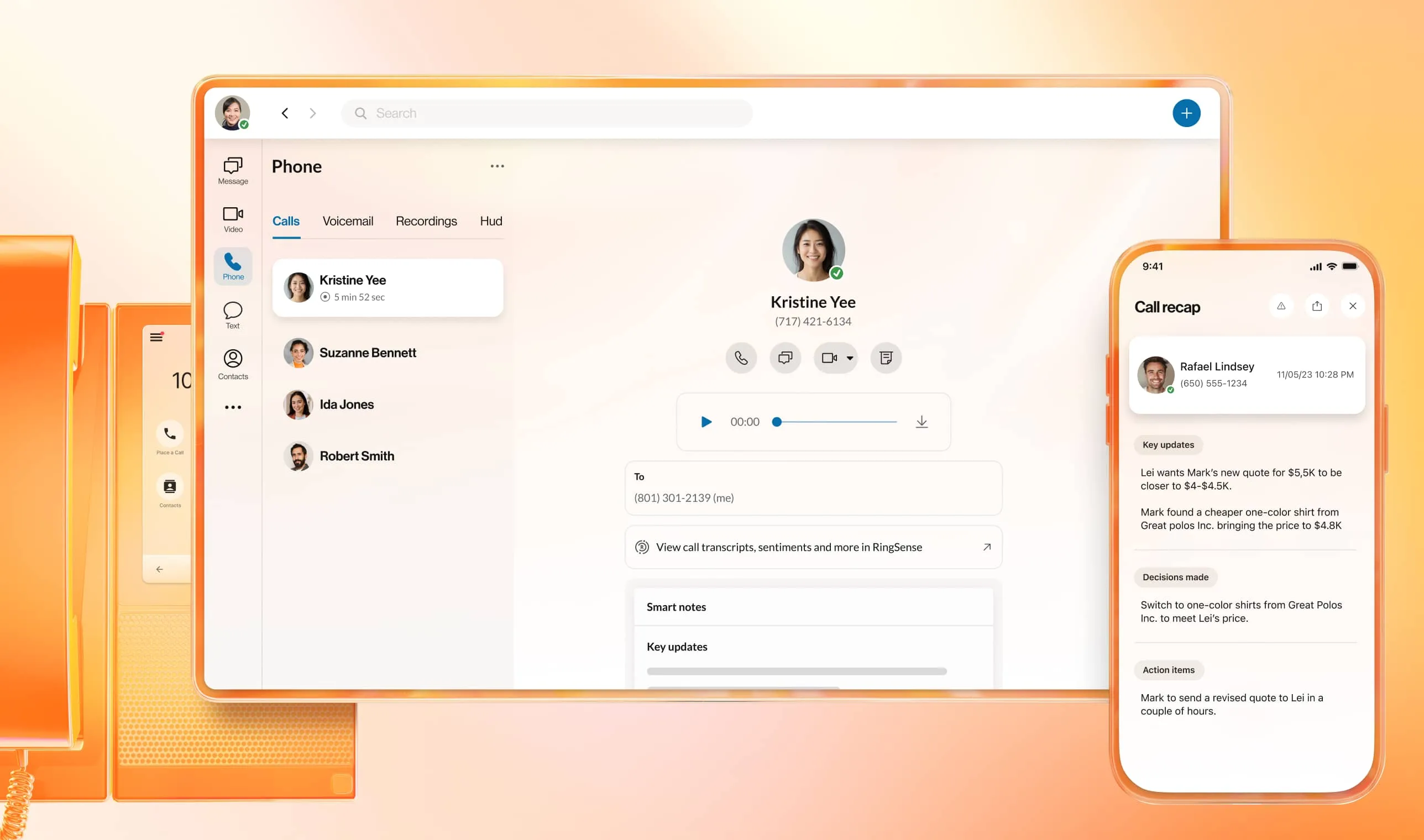
Now you know what transferring a call means, what it involves, and how easy it is with the RingCentral app—either on desktop or mobile. If you’re not already a RingCentral user, signing up gives you access to easy live call transfers and a whole lot more..
With the phone call transfer and other varied features of RingCentral RingCX, for instance, you can reduce customer wait and hold times, maximize your team members’ time and potential, and speed up call resolutions.
Easy call transfers and a whole lot more
Put easy call transfers and a whole host of further features at your agents’ fingertips with RingCentral RingCX.
Sign up to get quick access to a full product demo